XPPen Artist13.3 Pro 13.3 Inch IPS Drawing – Features & Prices in Saudi Arabia :
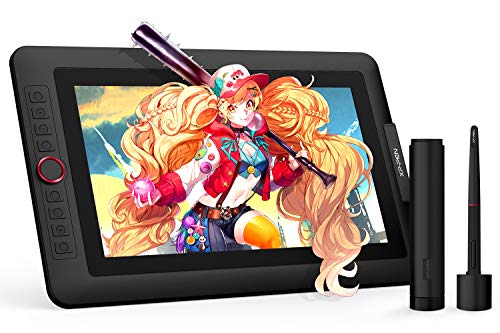
XPPen Artist13.3 Pro 13.3 Inch IPS Drawing Monitor Pen Display Full-Laminated Graphics Drawing Monitor with Tilt Function and 8 Shortcut Keys (8192 Levels Pen Pressure, 123% sRGB)
Product Dimensions
15.37 x 9.84 x 0.51 inches
Item Weight
4.4 pounds
ASIN
B07VPHR6GD
Item model number
Artist 13.3Pro
Is Discontinued By Manufacturer
No
Date First Available
July 24, 2019
Manufacturer
XP-PEN
Country of Origin
China
Test video – XPPen Artist13.3 Pro 13.3 Inch IPS Drawing :
Product highlights :
Drawing Tablet-❤Fully-laminated Screen❤ The Artist 13.3 Pro seamlessly combines the glass and screen, to create a distraction-free working environment, virtually no parallax.
Drawing Tablet with Screen-❤Tilt Function❤ XPPen Artist 13.3 Pro supports up to 60 degrees of tilt function, so now you don’t need to adjust the brush direction in the software again and again. Simply tilt to add shading to your creation and enjoy smoother and more natural transitions between lines and strokes
Graphics Tablets-❤High Color Gamut❤ The 13.3 inch fully-laminated FHD Display pairs a superb color accuracy of 88% NTSC (Adobe RGB≧91%,sRGB≧123%) with a 178-degree viewing angle and delivers rich colors, vivid images, and dazzling details in a wider view. Your creative world is now as powerful as it is colorful.
Drawing Pad-❤Improve your Workflow❤ A sleek Red Dial interface to make your workflow as smooth as possible. 8 fully customizable shortcut keys let you capture and express your ideas faster and more easily.
Drawing Display-❤Versatility and Compatibility❤ Supports Windows 10/8/7(32/64bit), Mac OS X 10.10 and higher. Compatible with Photoshop, Illustrator, SAI, CDR, GIMP, Krita, Medibang, Fire Alpaca, Blender 3D and more. Or register your XPPen Artist13.3 Pro drawing tablet on XPPen web to apply for an ArtRage 5, openCanvas and Cartoon Animator 4 Pipeline drawing program
Questions & Answers – XPPen Artist13.3 Pro 13.3 Inch IPS Drawing :
➕ What is the price of XPPen Artist13.3 Pro 13.3 Inch IPS Drawing in Saudi Arabia ?
The price of XPPen Artist13.3 Pro 13.3 Inch IPS Drawing in-store is 1050 SAR VAT.
➕ When XPPen Artist13.3 Pro 13.3 Inch IPS Drawing was released ?
The release date was July 24, 2019.
➕ What is the price of XPPen Artist13.3 Pro 13.3 Inch IPS Drawing cheap used ?
The price of XPPen Artist13.3 Pro 13.3 Inch IPS Drawing used is 730 SAR VAT.
➕ What are the main characteristics of XPPen Artist13.3 Pro 13.3 Inch IPS Drawing ?
Special specifications :
Drawing Tablet-❤Fully-laminated Screen❤ The Artist 13.3 Pro seamlessly combines the glass and screen, to create a distraction-free working environment, virtually no parallax.
➕ Is it interesting to buy this product ?
The best people who can answer you are customers who have already bought and tested this product (See Customer Reviews). This product is rated 4.6 / 5 on Amazon.
➕ Where to buy XPPen Artist13.3 Pro 13.3 Inch IPS Drawing in Saudi Arabia ?
Technical specifications – XPPen Artist13.3 Pro 13.3 Inch IPS Drawing :
Brand
XP-PEN
Connectivity Technology
USB, HDMI
Pressure Sensitivity
1024 Levels
Operating System
Windows, Android, Linux, Chrome OS, Mac
Special Feature
Online Education,Digital Drawing,Professional Design, Video Edition
Purchase advice :
Warranty :
Check the duration of the warranty and also the faults and defects it covers. Is it complete or limited? and What is included in the warranty (parts, repairs or both)?
Shipping :
Is delivery offered? And how long does it take to get delivered (Delivery time)
Proof of purchase :
Does the shop give you an invoice ?
After-sales service :
Do they have an after-sales service to have information about the installation or operation (instructions for use). Also in case of problem, it is the seller who takes charge or you must contact the manufacturer or supplier yourself.
_____________________________
10 reviews for XPPen Artist13.3 Pro 13.3 Inch IPS Drawing
H. A (verified owner)–
– I love this drawing screen, it’s my first drawing pen display, it’s a keeper.
H. A (verified owner)–
– I love this drawing screen, it’s my first drawing pen display, it’s a keeper.
Rated 5 out of 5
C. E (verified owner)–
Former Wacom & Surface Pro Illustrator – I made the switch and I’m very happy! – TLDR: This is working out better than my prior Wacom tablets and my Surface Pro 6 /7. Give it a shot but make sure to check EVERY detail first. There is no touch zoom (but maybe that’s for the best…)
N. N (verified owner)–
– This thing might be my favourite piece of hardware ever! After reading endless reviews and watching countless YouTube videos about the new wave of budget graphics tablets, I eventually took the plunge on this one – it was the laminated display the pushed me over the edge. I am running it with both a 2017 iMac and a 2012 MacBook Pro using Photoshop and Illustrator and it works flawlessly – responsive, accurate, easy to set up, natural in use and an absolute pleasure to use. Comfortable well designed pen. Colours look vibrant and to my eyes very accurate. Having never owned a graphics display before (in the past I have drawn on paper, scanned and traced in Illustrator), it’s impossible for me to compare to the Wacoms. But aside from having a higher resolution display it’s very hard to see how this could be any better than it is. I absolutely love it and my 5 yo daughter thinks it’s the most brilliant thing she’s ever seen – can’t recommend it highly enough.
Rated 5 out of 5
C. E (verified owner)–
Former Wacom & Surface Pro Illustrator – I made the switch and I’m very happy! – TLDR: This is working out better than my prior Wacom tablets and my Surface Pro 6 /7. Give it a shot but make sure to check EVERY detail first. There is no touch zoom (but maybe that’s for the best…)
Rated 5 out of 5
S. F (verified owner)–
Good in general, but with highly specific caveats. – A few months ago, I purchased the Kamvas Pro 13, a different drawing tablet. This thing was pretty good; you could draw on it and stuff and it would be on your computer. Really neat, right? This is a perfectly acceptable thing to do if you do it on Windows in a standard keyboard layout. However, as time passed, I found myself, for a number of reasons, doing two very specific things: switching from Windows 10 to Ubuntu and switching from a QWERTY keyboard layout to Dvorak. These are the roots of the aforementioned caveats. Now, if you don’t do both of these things then you will probably be fine. However, here’s where I notice some very specific things about this tablet. It comes with some cool buttons on the side, right? You can press them and they do all kinds of things. However, I wanted them to do other things, namely to mimic the presses of the keys Ctrl and Z, for pretty direct reasons. They may do this out of the box, but because of that aforementioned Dvorak switcheroo, they don’t do that here. Now, you can probably just switch your keyboard layout (defaults to Super + Space) but I thought that such an action would be just a bit too tedious for me. “I know!” I fathomed, “I’ll just go online and get the software that the tablet uses. Surely that will permit me to reassign the keys to what I need.” I can attest that I think it does that. What it does not do, however is work very well with Ubuntu. I don’t know if this is Ubuntu’s fault or XP-Pen’s or what can necessarily be done about it. The display is broken beyond all recognition when selecting the touch area. It looks like the attached image in the area where it wants you to select the screen (fyi, that’s a Google Image, but the effect is pretty similar). I have a hunch that the reason it doesn’t know to switch out of the box is due to XInput, and that the weird screen effect is just an Ubuntu thing (have had a similar issue when using sreensharing software). Regardless, if you happen to find yourself using Ubuntu and typing using… not QWERTY, then you can either switch to QWERTY while drawing or journey through StackOverflow looking for a solution. Either way, would recommend not installing the software until you come up with an alternate mode of operation or just not at all. If you don’t use either of these things… it’s fine, I guess. I suck at drawing, so this isn’t exactly the power user review. But it does function and do cool things under specific conditions, so I would recommend it.
D. S (verified owner)–
– I have been using this tablet for months now, and it is a pleasure to work with. The few problems it has are so inconsequential that I can do nothing but recommend this product to anyone looking for a screen this size.
Rated 5 out of 5
S. F (verified owner)–
Good in general, but with highly specific caveats. – A few months ago, I purchased the Kamvas Pro 13, a different drawing tablet. This thing was pretty good; you could draw on it and stuff and it would be on your computer. Really neat, right? This is a perfectly acceptable thing to do if you do it on Windows in a standard keyboard layout. However, as time passed, I found myself, for a number of reasons, doing two very specific things: switching from Windows 10 to Ubuntu and switching from a QWERTY keyboard layout to Dvorak. These are the roots of the aforementioned caveats. Now, if you don’t do both of these things then you will probably be fine. However, here’s where I notice some very specific things about this tablet. It comes with some cool buttons on the side, right? You can press them and they do all kinds of things. However, I wanted them to do other things, namely to mimic the presses of the keys Ctrl and Z, for pretty direct reasons. They may do this out of the box, but because of that aforementioned Dvorak switcheroo, they don’t do that here. Now, you can probably just switch your keyboard layout (defaults to Super + Space) but I thought that such an action would be just a bit too tedious for me. “I know!” I fathomed, “I’ll just go online and get the software that the tablet uses. Surely that will permit me to reassign the keys to what I need.” I can attest that I think it does that. What it does not do, however is work very well with Ubuntu. I don’t know if this is Ubuntu’s fault or XP-Pen’s or what can necessarily be done about it. The display is broken beyond all recognition when selecting the touch area. It looks like the attached image in the area where it wants you to select the screen (fyi, that’s a Google Image, but the effect is pretty similar). I have a hunch that the reason it doesn’t know to switch out of the box is due to XInput, and that the weird screen effect is just an Ubuntu thing (have had a similar issue when using sreensharing software). Regardless, if you happen to find yourself using Ubuntu and typing using… not QWERTY, then you can either switch to QWERTY while drawing or journey through StackOverflow looking for a solution. Either way, would recommend not installing the software until you come up with an alternate mode of operation or just not at all. If you don’t use either of these things… it’s fine, I guess. I suck at drawing, so this isn’t exactly the power user review. But it does function and do cool things under specific conditions, so I would recommend it.
D. S (verified owner)–
– I have been using this tablet for months now, and it is a pleasure to work with. The few problems it has are so inconsequential that I can do nothing but recommend this product to anyone looking for a screen this size.
N. N (verified owner)–
– This thing might be my favourite piece of hardware ever! After reading endless reviews and watching countless YouTube videos about the new wave of budget graphics tablets, I eventually took the plunge on this one – it was the laminated display the pushed me over the edge. I am running it with both a 2017 iMac and a 2012 MacBook Pro using Photoshop and Illustrator and it works flawlessly – responsive, accurate, easy to set up, natural in use and an absolute pleasure to use. Comfortable well designed pen. Colours look vibrant and to my eyes very accurate. Having never owned a graphics display before (in the past I have drawn on paper, scanned and traced in Illustrator), it’s impossible for me to compare to the Wacoms. But aside from having a higher resolution display it’s very hard to see how this could be any better than it is. I absolutely love it and my 5 yo daughter thinks it’s the most brilliant thing she’s ever seen – can’t recommend it highly enough.

H. A (verified owner) –
– I love this drawing screen, it’s my first drawing pen display, it’s a keeper.
H. A (verified owner) –
– I love this drawing screen, it’s my first drawing pen display, it’s a keeper.
C. E (verified owner) –
Former Wacom & Surface Pro Illustrator – I made the switch and I’m very happy! – TLDR: This is working out better than my prior Wacom tablets and my Surface Pro 6 /7. Give it a shot but make sure to check EVERY detail first. There is no touch zoom (but maybe that’s for the best…)
N. N (verified owner) –
– This thing might be my favourite piece of hardware ever! After reading endless reviews and watching countless YouTube videos about the new wave of budget graphics tablets, I eventually took the plunge on this one – it was the laminated display the pushed me over the edge. I am running it with both a 2017 iMac and a 2012 MacBook Pro using Photoshop and Illustrator and it works flawlessly – responsive, accurate, easy to set up, natural in use and an absolute pleasure to use. Comfortable well designed pen. Colours look vibrant and to my eyes very accurate. Having never owned a graphics display before (in the past I have drawn on paper, scanned and traced in Illustrator), it’s impossible for me to compare to the Wacoms. But aside from having a higher resolution display it’s very hard to see how this could be any better than it is. I absolutely love it and my 5 yo daughter thinks it’s the most brilliant thing she’s ever seen – can’t recommend it highly enough.
C. E (verified owner) –
Former Wacom & Surface Pro Illustrator – I made the switch and I’m very happy! – TLDR: This is working out better than my prior Wacom tablets and my Surface Pro 6 /7. Give it a shot but make sure to check EVERY detail first. There is no touch zoom (but maybe that’s for the best…)
S. F (verified owner) –
Good in general, but with highly specific caveats. – A few months ago, I purchased the Kamvas Pro 13, a different drawing tablet. This thing was pretty good; you could draw on it and stuff and it would be on your computer. Really neat, right? This is a perfectly acceptable thing to do if you do it on Windows in a standard keyboard layout. However, as time passed, I found myself, for a number of reasons, doing two very specific things: switching from Windows 10 to Ubuntu and switching from a QWERTY keyboard layout to Dvorak. These are the roots of the aforementioned caveats. Now, if you don’t do both of these things then you will probably be fine. However, here’s where I notice some very specific things about this tablet. It comes with some cool buttons on the side, right? You can press them and they do all kinds of things. However, I wanted them to do other things, namely to mimic the presses of the keys Ctrl and Z, for pretty direct reasons. They may do this out of the box, but because of that aforementioned Dvorak switcheroo, they don’t do that here. Now, you can probably just switch your keyboard layout (defaults to Super + Space) but I thought that such an action would be just a bit too tedious for me. “I know!” I fathomed, “I’ll just go online and get the software that the tablet uses. Surely that will permit me to reassign the keys to what I need.” I can attest that I think it does that. What it does not do, however is work very well with Ubuntu. I don’t know if this is Ubuntu’s fault or XP-Pen’s or what can necessarily be done about it. The display is broken beyond all recognition when selecting the touch area. It looks like the attached image in the area where it wants you to select the screen (fyi, that’s a Google Image, but the effect is pretty similar). I have a hunch that the reason it doesn’t know to switch out of the box is due to XInput, and that the weird screen effect is just an Ubuntu thing (have had a similar issue when using sreensharing software). Regardless, if you happen to find yourself using Ubuntu and typing using… not QWERTY, then you can either switch to QWERTY while drawing or journey through StackOverflow looking for a solution. Either way, would recommend not installing the software until you come up with an alternate mode of operation or just not at all. If you don’t use either of these things… it’s fine, I guess. I suck at drawing, so this isn’t exactly the power user review. But it does function and do cool things under specific conditions, so I would recommend it.
D. S (verified owner) –
– I have been using this tablet for months now, and it is a pleasure to work with. The few problems it has are so inconsequential that I can do nothing but recommend this product to anyone looking for a screen this size.
S. F (verified owner) –
Good in general, but with highly specific caveats. – A few months ago, I purchased the Kamvas Pro 13, a different drawing tablet. This thing was pretty good; you could draw on it and stuff and it would be on your computer. Really neat, right? This is a perfectly acceptable thing to do if you do it on Windows in a standard keyboard layout. However, as time passed, I found myself, for a number of reasons, doing two very specific things: switching from Windows 10 to Ubuntu and switching from a QWERTY keyboard layout to Dvorak. These are the roots of the aforementioned caveats. Now, if you don’t do both of these things then you will probably be fine. However, here’s where I notice some very specific things about this tablet. It comes with some cool buttons on the side, right? You can press them and they do all kinds of things. However, I wanted them to do other things, namely to mimic the presses of the keys Ctrl and Z, for pretty direct reasons. They may do this out of the box, but because of that aforementioned Dvorak switcheroo, they don’t do that here. Now, you can probably just switch your keyboard layout (defaults to Super + Space) but I thought that such an action would be just a bit too tedious for me. “I know!” I fathomed, “I’ll just go online and get the software that the tablet uses. Surely that will permit me to reassign the keys to what I need.” I can attest that I think it does that. What it does not do, however is work very well with Ubuntu. I don’t know if this is Ubuntu’s fault or XP-Pen’s or what can necessarily be done about it. The display is broken beyond all recognition when selecting the touch area. It looks like the attached image in the area where it wants you to select the screen (fyi, that’s a Google Image, but the effect is pretty similar). I have a hunch that the reason it doesn’t know to switch out of the box is due to XInput, and that the weird screen effect is just an Ubuntu thing (have had a similar issue when using sreensharing software). Regardless, if you happen to find yourself using Ubuntu and typing using… not QWERTY, then you can either switch to QWERTY while drawing or journey through StackOverflow looking for a solution. Either way, would recommend not installing the software until you come up with an alternate mode of operation or just not at all. If you don’t use either of these things… it’s fine, I guess. I suck at drawing, so this isn’t exactly the power user review. But it does function and do cool things under specific conditions, so I would recommend it.
D. S (verified owner) –
– I have been using this tablet for months now, and it is a pleasure to work with. The few problems it has are so inconsequential that I can do nothing but recommend this product to anyone looking for a screen this size.
N. N (verified owner) –
– This thing might be my favourite piece of hardware ever! After reading endless reviews and watching countless YouTube videos about the new wave of budget graphics tablets, I eventually took the plunge on this one – it was the laminated display the pushed me over the edge. I am running it with both a 2017 iMac and a 2012 MacBook Pro using Photoshop and Illustrator and it works flawlessly – responsive, accurate, easy to set up, natural in use and an absolute pleasure to use. Comfortable well designed pen. Colours look vibrant and to my eyes very accurate. Having never owned a graphics display before (in the past I have drawn on paper, scanned and traced in Illustrator), it’s impossible for me to compare to the Wacoms. But aside from having a higher resolution display it’s very hard to see how this could be any better than it is. I absolutely love it and my 5 yo daughter thinks it’s the most brilliant thing she’s ever seen – can’t recommend it highly enough.